The Project Statistics button in Microsoft Project provides a quick and highly useful “status-at-a-glance” snapshot of your construction project's programme. This tool offers an immediate overview of all key information for the project.
It allows you to quickly determine whether the project is on track or if there are issues, such as being over time or over budget.
For the purpose of these instructions, I will be using a blank Microsoft Project file.
The trail for viewing Statistics is:
Project Tab > Properties group > Project Information button > Project Information dialogue box > Statistics
Below you can find instructions on locating your programme's Project Statistics.
1. Select the Project tab, find and click the Project Information button within the Properties group.

Project Tab > Properties group > Project Information button
2. In the Project Information dialogue box, click Statistics.

Project Information dialogue box > Statistics
3. The Project Statistics are illustrated within the following table:

The Statistics tool button can be added to the Quick Access Toolbar, so that is always immediately available without having to navigate back to the Project Information dialogue each time you want to use it. For demonstration purposes, I will be using a blank MS Project file.
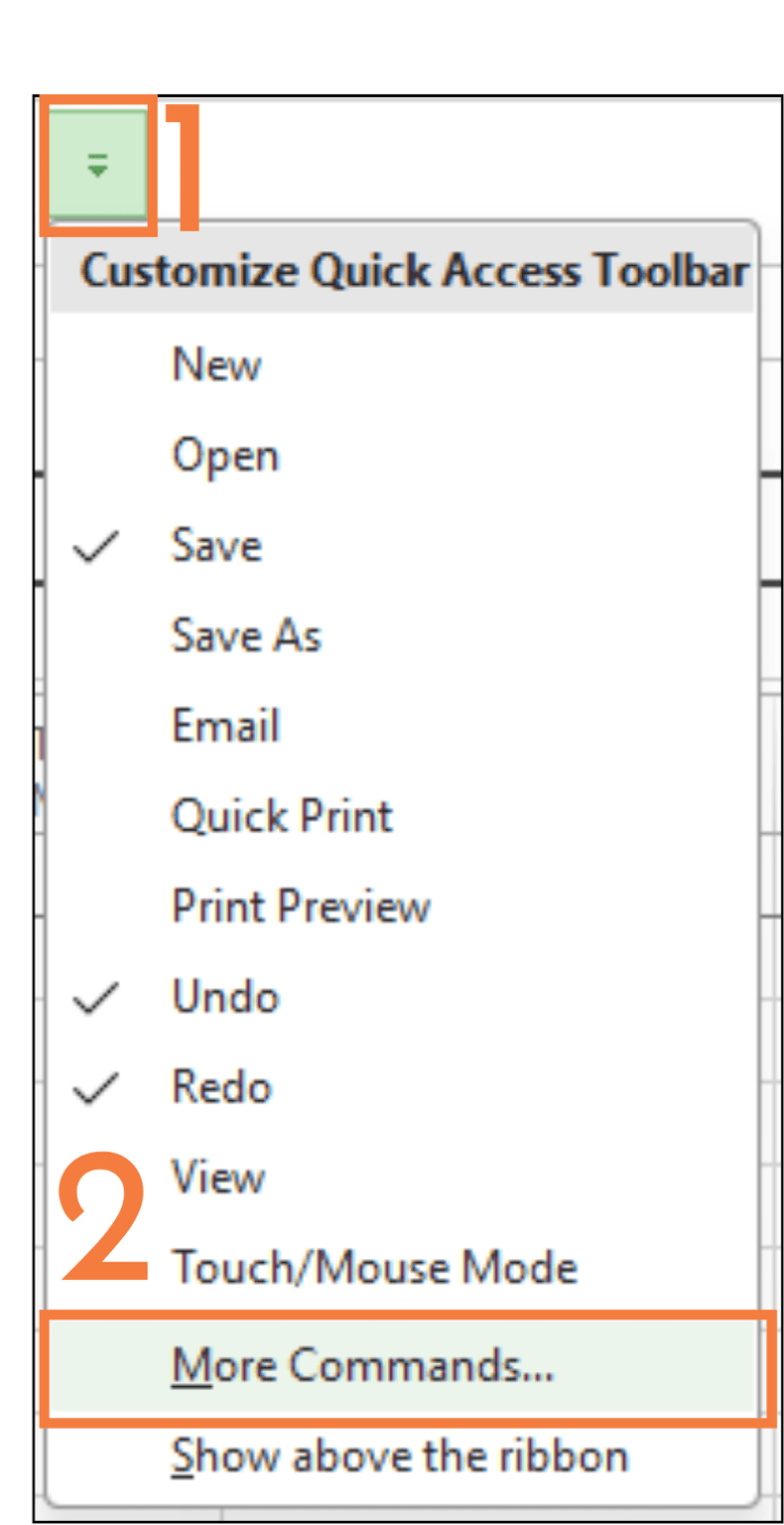
1. To add it to the Toolbar, click on the drop-down arrow icon (pictured right) at the end of the Quick Access Toolbar. You will see a hint that says, 'Customize Quick Access Toolbar'.

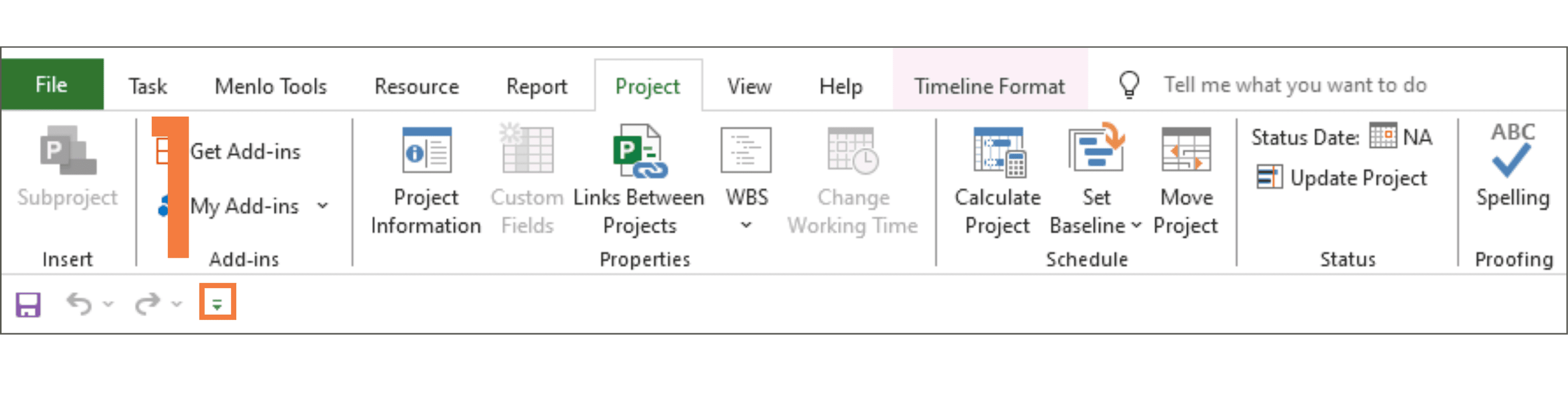
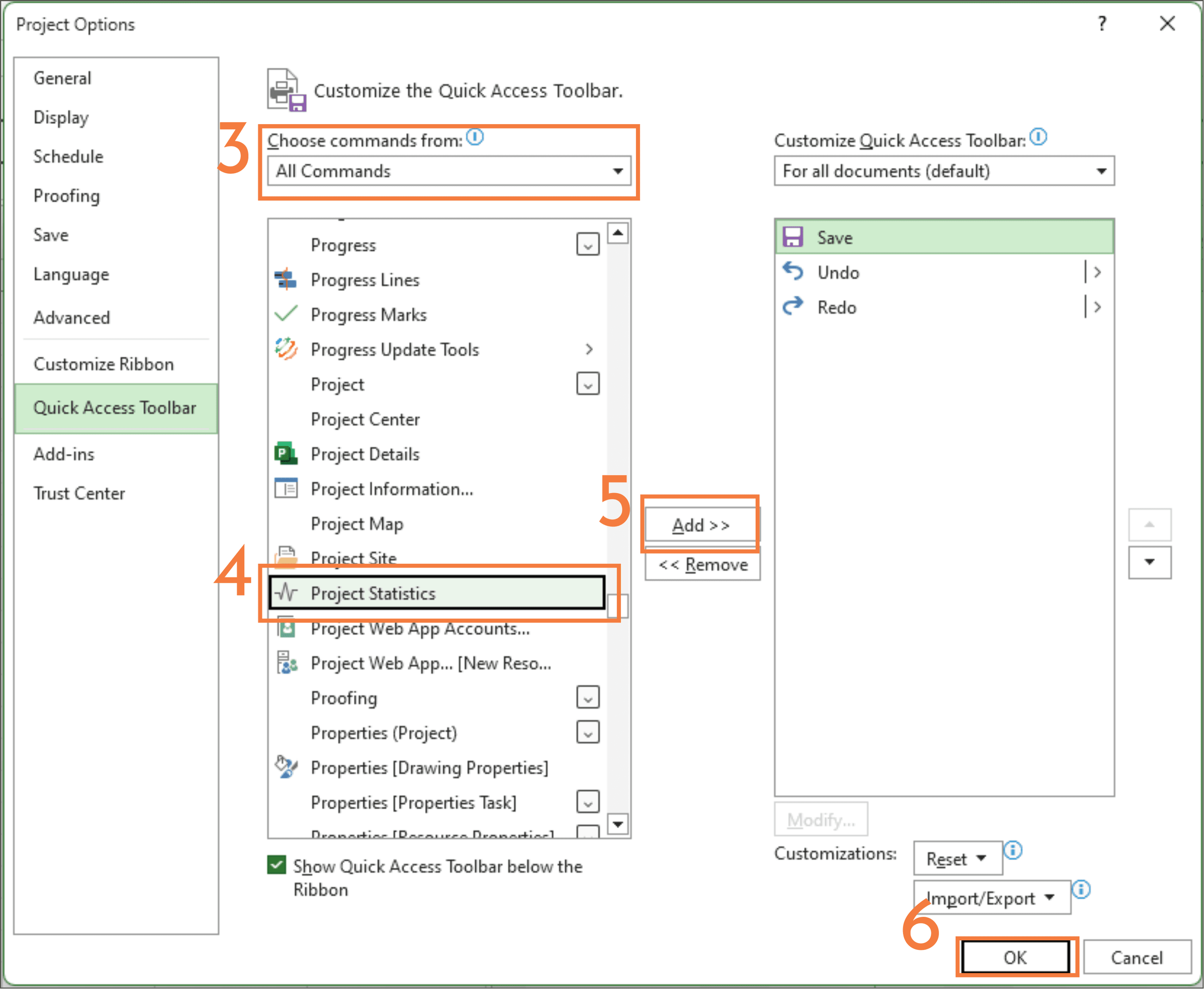
2. Choose More Commands.... This will open the Project Options dialogue box on the Quick Access Toolbar tab.
3. Under Choose commands from:, select All Commands in the drop-down menu.
4. In the list below, scroll to find and select Project Statistics.
5. Click Add >> to customise your Quick Access Toolbar.
6. Click OK to save the change and close the dialogue box.
7. The Statistics button is now loaded on the Toolbar:

Note: The Quick Access Toolbar may appear above the ribbon depending on your settings.

To move the Toolbar above the ribbon, select the Show above the ribbon option in the Customize Quick Access Toolbar drop-down menu. This is one of the many ways in which you can customise Microsoft Project to suit your needs and preferences.
You can add the Project Statistics button as a quick check for effect on Critical Path when adding delays and changes in scope to the programme.
Check out our video on the Project Statistics Tool below:
If you have any questions regarding MS Project, or construction programming, feel free to email at JustAsk@Menlo-Academy.com.
The United States Defence Contract Management Agency (DCMA) is a Federal Agency for the American Department of Defence (DoD), that works directly with Defence suppliers to help ensure that DoD, Federal, and allied government supplies and services are delivered on time, at projected cost, and meet all performance requirements.
After contract award, the DCMA monitors contractors' performance and management systems to ensure that cost, product performance, and delivery schedules are in compliance with the terms and conditions of their contracts.
As part of this responsibility the DCMA employ a 14-point assessment, which rigorously evaluates the quality and logic of a programme schedule to ensure a high level of confidence that the works can be completed on time.
This assessment forms the basis of what could be described as a best practice approach to programming & scheduling, which evolves into a common-sense set of Golden Rules for construction programmers
Whilst passing the tests in the assessment does not provide a cast-iron guarantee that a project will be completed on time; not passing them, almost certainly guarantees its failure.
The assessment metrics also provide a range of in-progress checks which allow the Project Manager to quickly identify risk factors which could impact on finish dates, allowing informed corrective action to be taken as early as possible to ensure the project stays on track.
Although it is not widely accepted as an industry standard, it does provide a consistent robust platform from which to identify any weakness or inherent risks that may be present within a construction programme, in order to ensure that all programmes are written to the highest quality, and that the user can have a high level of confidence in the result.
This Guide is intended to provide a reference to, and an explanation of, the underlying principles governing the reasoning and rationale used as the basis for the assessment tests.
The DCMA states that no more than 5% of incomplete tasks should be missing a predecessor and/or successor link.
The Logic test looks at the completeness of the logical network of predecessors and successors running through the project to ensure that all tasks are linked.
The reason is, that in order to correctly calculate the duration of the programme, it is essential that all tasks are connected throughout the programme network. Any tasks without a valid successor means that the preceding section of work is left hanging and goes nowhere.
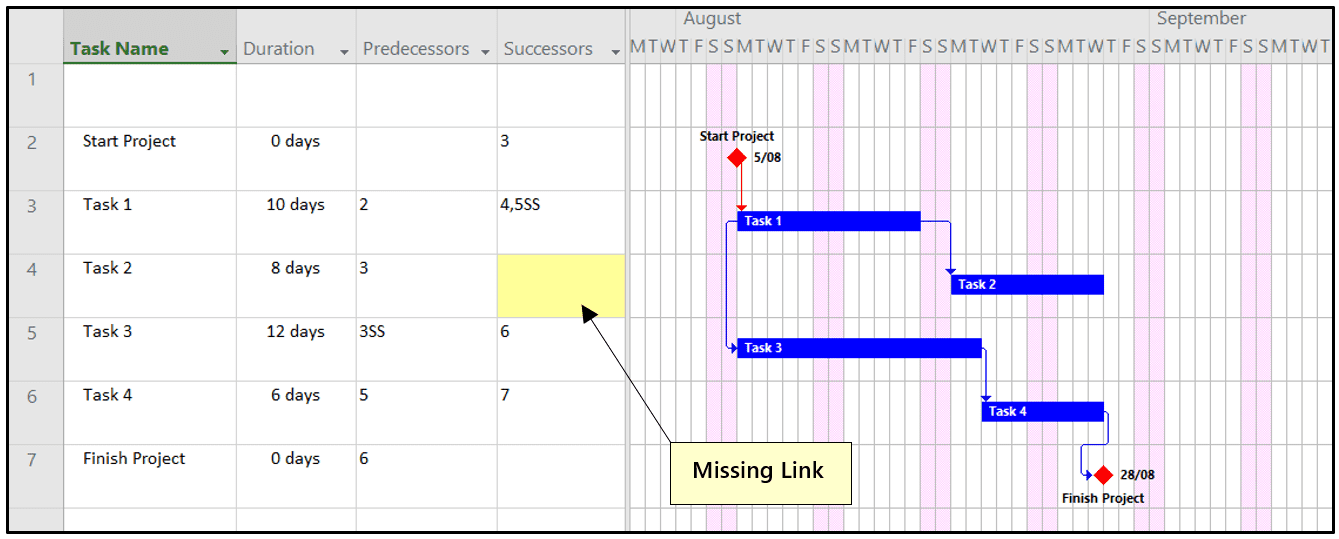
Since one missing link can have a major impact on the calculated completion date, adopting this ‘Start & Finish’ approach and checking that there are no gaps ensures complete logic. This provides proof that the reasoning for the relationship has been considered and not merely overlooked.
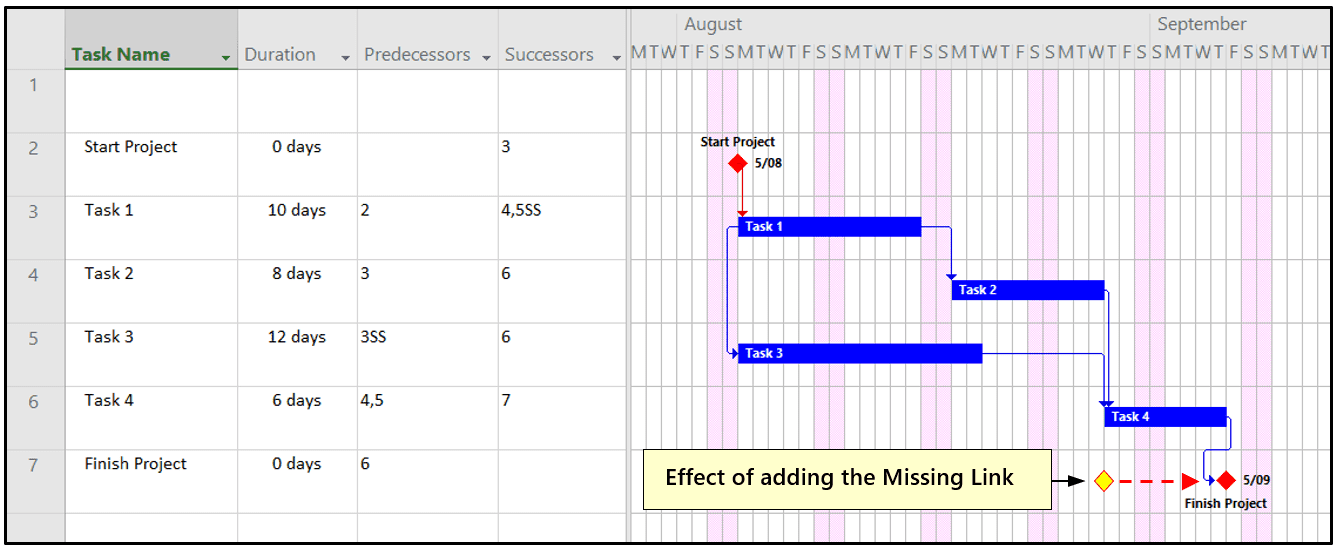
Consequently, best practice dictates that all tasks should be fully linked throughout, by at least one suitable predecessor task and one suitable successor task, even if these are just the project start and finish milestones. There are some exceptions in this test, such as summary tasks, which are essentially chapter or section headings for navigation around the programme, and consequently should not have any predecessor or successor links.